Video
Add video to any page with a YouTube or Vimeo link, or by uploading your own file. Both end up as a video block you can style and place like any other block.
Add a video block
Click Video in the editor toolbar to add a video block to your section, or drag a video file straight onto the section (see Upload your own video). Once it's on the page, click it to open the video edit panel.
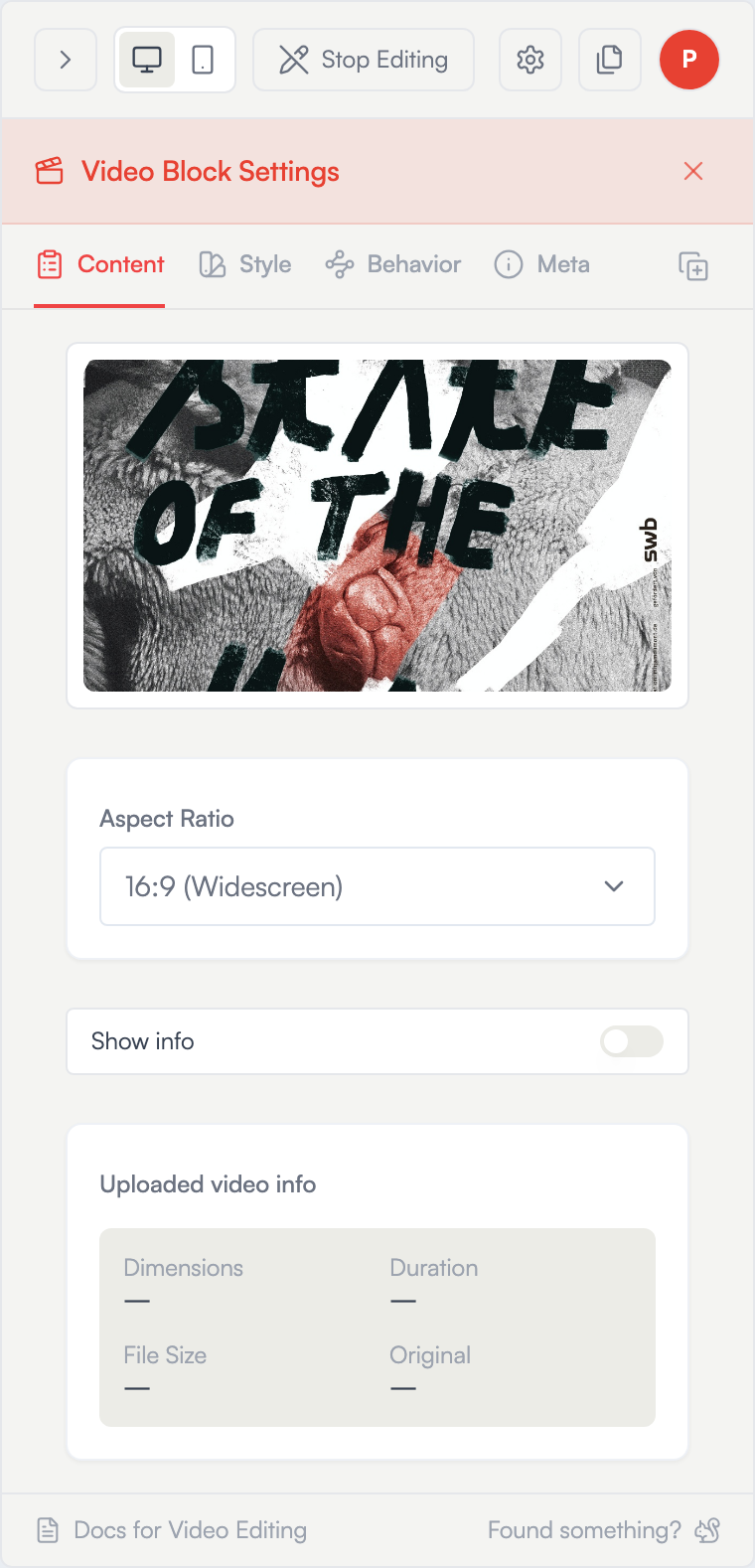
The panel has four tabs:
- Video — source (URL or upload), aspect ratio, thumbnail, caption
- Style — card style, borders, shadows, presets
- Meta — title, caption, credits (coming soon)
- Behavior — playback toggles and caption hover effects
Embed a YouTube or Vimeo video
On the Video tab, paste a link into the Video URL field. Both YouTube and Vimeo URLs are supported. New Salon extracts the video ID automatically and pulls in a poster thumbnail for you.
A live preview appears at the top of the panel as soon as the URL resolves.
Upload your own video
On the Upload tab, drag a file into the uploader or click to select one. Files are converted in your browser before they upload (see Which files work). A progress bar shows the processing and upload phases, and you can Cancel at any time.
The uploader displays your plan's per-file size limit (for example "up to 100 MB"). The limit applies to the converted file, which is usually much smaller than the original.
You can also drag video files straight onto a section (or use Upload Images or Videos in the toolbar), together with images if you like. Each file becomes its own block, in the order you dropped them. Videos are processed one at a time while the images keep uploading; the progress box shows the video in progress. Uploads keep running if you switch the section's layout or move to another page — only reloading or closing the tab stops them.
To add several videos from this dialog, select them together on the Upload tab: the dialog closes and they upload in the background, just like a drop.
Up to 20 videos go in one upload — any more are skipped and listed, so you can add them in a second go. If your site's storage is full, the remaining videos are skipped with a message instead of being processed first.
To replace an uploaded video, delete the block and add a new one.
Removing a video block doesn't delete the video itself: it stays in Media → Videos, so you can use it again. To clean up, open Media → Videos, switch the filter to Unused, and delete what you no longer need. Videos used on a page never show up under Unused.
Which files work
File types: MP4, MOV, WebM and MKV.
Inside the file, the video has to use a common format (codec): H.264, HEVC (H.265), VP8, VP9 or AV1. That covers video from phones, most cameras, screen recordings and the usual MP4 exports from editing apps.
Not supported:
- AVI files
- MOV files in ProRes, Photo-JPEG / Motion JPEG, DV or other professional or older formats, for example from Final Cut Pro exports, older digital cameras or older QuickTime exports
Convert these to MP4 (H.264) first; see Convert a video to MP4. Browsers can't read these formats, so the conversion has to happen before the upload.
What gets stored: every upload is saved as an MP4 (H.264, about 4 Mbit/s) that fits within 1920 × 1080. A portrait video is at most 1080 pixels tall.
Which browsers work
Upload videos with Chrome, Edge, Firefox or Safari 16.4 or later, on a computer or a phone.
Opera can't process the sound of a video, so most uploads fail there; videos without sound work. Please use one of the browsers above.
If a video won't upload
The upload dialog (or the progress box, when you dropped files onto a section) tells you why:
| Message | What to do |
|---|---|
| This video's format (for example ProRes or Photo-JPEG) can't be converted in the browser | Convert it to MP4 and upload that. |
| This file type can't be converted in the browser or "…" can't be converted in the browser | The file is an AVI or another unsupported type. Convert it to MP4. |
| This browser can't read this video's format | Usually an HEVC video in a browser without HEVC support. Try Chrome, Edge or Safari, or convert it to MP4 (H.264). |
| This browser can't process the sound of this video | You're using Opera. Upload with Chrome, Edge, Firefox or Safari. |
| Processing stopped making progress | Try again, ideally in another browser. If it keeps happening, convert the video to MP4 (H.264) first. |
Convert a video to MP4
- Mac: open the video in QuickTime Player, choose File → Export As → 1080p, and pick Greater Compatibility (H.264). This works for ProRes, Photo-JPEG and DV files.
- Windows, Mac or Linux: the free app HandBrake converts almost any video, including AVI. Open the file, keep the preset Fast 1080p30, and click Start.
- Editing apps (Final Cut Pro, Premiere Pro, DaVinci Resolve): export as H.264 / MP4 instead of ProRes.
Set the aspect ratio
Choose how the video frame is shaped with the Aspect Ratio dropdown:
- 16:9 (Widescreen)
- 4:3 (Standard)
- 1:1 (Square)
- 9:16 (Vertical)
Thumbnails
Embedded YouTube and Vimeo videos use the platform's poster image automatically.
For uploaded videos, a thumbnail picker appears inside the preview card on the Video tab, so you can pick a custom poster frame next to the live preview.
Captions
Each video has a rich-text Caption field (the same editor used by text and image blocks — headings, bold, italic, lists, and links). The caption renders below the video on the page.
Playback options
On the Behavior tab, toggle:
- Autoplay — start playing when the page loads
- Loop — replay automatically when it ends
- Muted — start without sound (often required for autoplay)
- Show Controls — display the player's play/pause and scrubber
You can also set a Caption Hover Effect (None, Color, Show, or Hide) when a caption is visible.
Reuse settings across the section
- Duplicate — the copy icon at the top of the panel duplicates the block (uploaded videos reuse the same file, so they don't count again against your storage).
- Apply to Section — on the Style and Behavior tabs, push the current block's styling and playback choices to every other video block in the section.
- Reset to Site Theme — clear this block's custom styling and fall back to your site theme.
Plan limits
Video embeds (YouTube/Vimeo) are unlimited on every plan, including Free.
Video uploads are available on every plan, including Free. There's no limit on the number of videos — uploads simply count toward your site's shared storage, alongside images. Each plan also caps the size of a single video file:
| Plan | Storage per site (shared with images) | Max per video file |
|---|---|---|
| Free | 500 MB | 100 MB |
| Basic | 2 GB | 500 MB |
| Premium | 10 GB | 1 GB |
| Pro | 50 GB | 2 GB |
| Pro Lifetime | 50 GB | 2 GB |
To raise these limits, see Plans & Pricing.
Going live
When you're done, click Stop Editing in the top bar (or the Preview pencil icon in the floating toolbar). Your video changes appear on the live site within a few seconds of saving; leaving edit mode just shows you the page as visitors see it.