Understanding the Editor
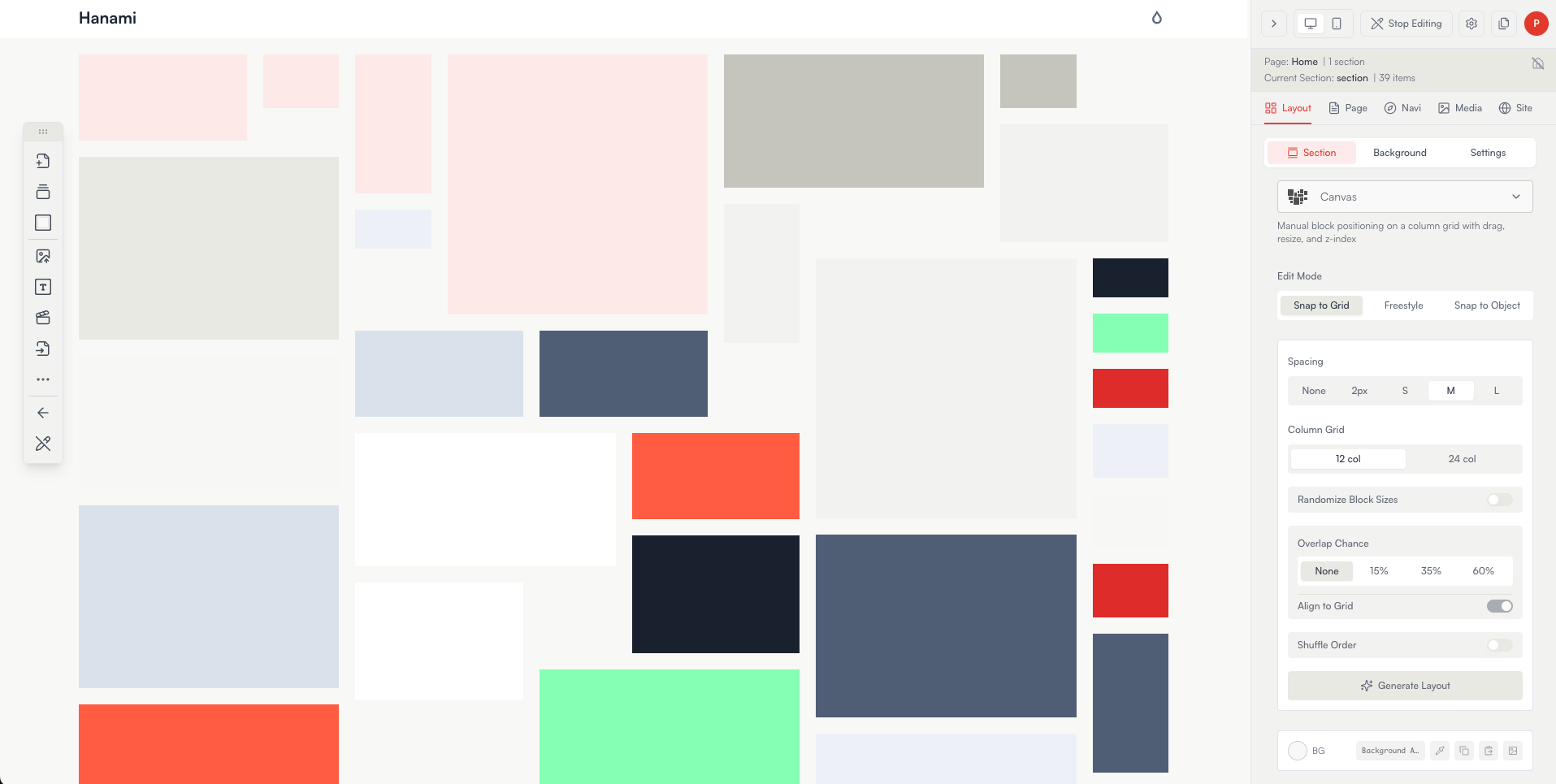
The editor is where you build. Open any site from your dashboard to enter it.
The toolbar
A floating, draggable toolbar holds your main actions:
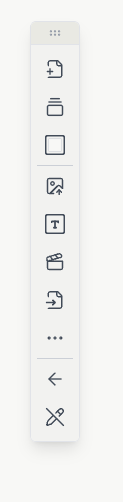
- Add Page — create a new page.
- Add Section — stack a new band below the current one.
- Section Background — set the current section's background.
- Upload Images or Videos — add photos and video files as blocks. You can also drag files straight onto a section.
- Add Text Block — add a text block.
- Add Video Block — embed a YouTube or Vimeo video.
- Browse Pages — jump between the pages in your site, or add a page block that links to another page as a card.
- ••• (More) — the three-dots button opens more block types: Newsletter signup, Contact form, and Map.
- Back to Dashboard — leave the editor.
- Preview — the crossed-out-pencil icon exits edit mode to show your site as a visitor will. It's the same action as the Stop Editing button in the top bar — see Stop Editing.
Working with blocks
Blocks are the content inside a section.
- Move — drag a block to reposition it.
- Resize — drag a block's edges or corners.
- Edit — select a block to open its properties (style, link, alt text, and more) in the side panel.
The block types you can add are image, text, video, and a page block (a link to another page, shown as a card), plus newsletter, contact form, and map under the ••• (three-dots) button.
The side panel
The side panel on the right (visible in the screenshot above) is where you shape and style your site. It's organised into tabs:
- Layout — the selected section's SalonEngine layout (Canvas, Fixed Width, Slideshow, Justified, and more) and its style and background. See Understanding layouts.
- Page — the current page's settings and visibility (including whether it's published).
- Navi — your site's navigation: which pages appear, their order, and how the menu looks.
- Media — your uploaded images, to reuse across the site.
- Site — site-wide appearance: theme, colours, and fonts that cascade across every page.
Selecting a block also opens its properties here, so you can fine-tune its style, link, and alt text.
Saving and viewing your site
Your work saves automatically as you edit — there's no Save button to remember. Click Stop Editing to leave edit mode and see your site exactly as a visitor will, then Publish when you're ready to go live.